Supercharge Your AI Coding Workflow: Stop Waiting, Start Shipping with Open Code


Let's be honest. If you're using AI for coding, you've probably felt it. That subtle drag, that tiny frustration. You open your AI coding tool, ask it to do something, and then you wait. One task, one terminal, one conversation at a time. It’s like waiting for a single oven to bake a dozen cakes, one after another. Your brain, with all its amazing multitasking potential, ends up babysitting terminals.
That bottleneck isn't the AI's speed; it's your attention. It's the constant context switching, the endless tabs, and the nagging question: "Is that task done yet? How much money have I spent on this request?"
Today, I want to show you how I've completely transformed my AI coding workflow. I'm talking about running multiple AI tasks in parallel, keeping a sharp eye on usage, and finally breaking free from the terminal-babysitting trap. We're diving into Open Code, a tool that has genuinely changed how I ship products faster, even as a solopreneur.
I'm Keith, and I've spent years building and exiting companies. I’ve tried pretty much every AI coding tool out there—Cursor, OpenAI Code-X, Cloud Code, you name it. They're all good at generating code. But none of them solved the real problem slowing me down: managing multiple tasks and knowing exactly what was happening across all of them.
So, let me paint a picture of my old workflow, and then we'll see how Open Code blew it out of the water.

The Old Way: A Multitasking Nightmare
Imagine this: I subscribe to all the big AI models – Gemini, Claude, OpenAI. Each has its strengths, right? When I had a project, I used to open a separate terminal window for each model I wanted to use. Maybe one for a quick bug fix with GPT-4, another for a planning session with Claude, and a third for some experimental code generation with Gemini.
It sounds efficient on paper. "I'll just switch between them!"
The reality was a chaotic mess.
- Confusion: Which window was working on which task?
- Lack of Status: Is this model still thinking, or did it fail? Is it done?
- Cost Anxiety: Most importantly, how much credit did I have left on each one? Was I burning through my OpenAI budget on a trivial task while my Gemini credits sat unused?
What ended up happening? I'd just use one window, one model, until its credits ran out or I got frustrated with its performance, then switch. This meant I was always doing one task at a time, sequentially. It was a digital assembly line where only one robot could work at once. My attention was constantly fractured, trying to juggle these separate conversations.
Enter Open Code: Your Personal AI Task Orchestrator
Open Code really changed things for me. It’s not just another AI coding tool; it's an intelligent hub that lets you manage and orchestrate all your AI coding tasks. Think of it less like a single terminal and more like a control center for your AI agents.
Here's the big difference:
- Parallel Processing: I can now run multiple tasks with different AI models at the same time.
- Unified Usage Tracking: It tells me exactly how much I've used across all models, preventing budget surprises.
- Clear Alerts: It flags when a task is done, so I don't have to keep checking.
- Model Flexibility: I can mix and match models on the same project, choosing the best AI for each specific job.
This isn't just a minor improvement; it's a fundamental shift. Instead of watching AI work, my job is now to intervene when needed. I can set multiple agents to work on different parts of a problem, knowing I'll be notified when they need my input. This frees up my most precious resource: my attention.
Let's dive into how it works and how you can get started.
Getting Started: How to Install Open Code
Open Code offers several ways to get up and running, catering to different preferences and workflows. You can choose the desktop app for a visual experience, integrate it into your existing IDE, use it via the command line interface (CLI) for ultimate control, or even access it through your web browser.
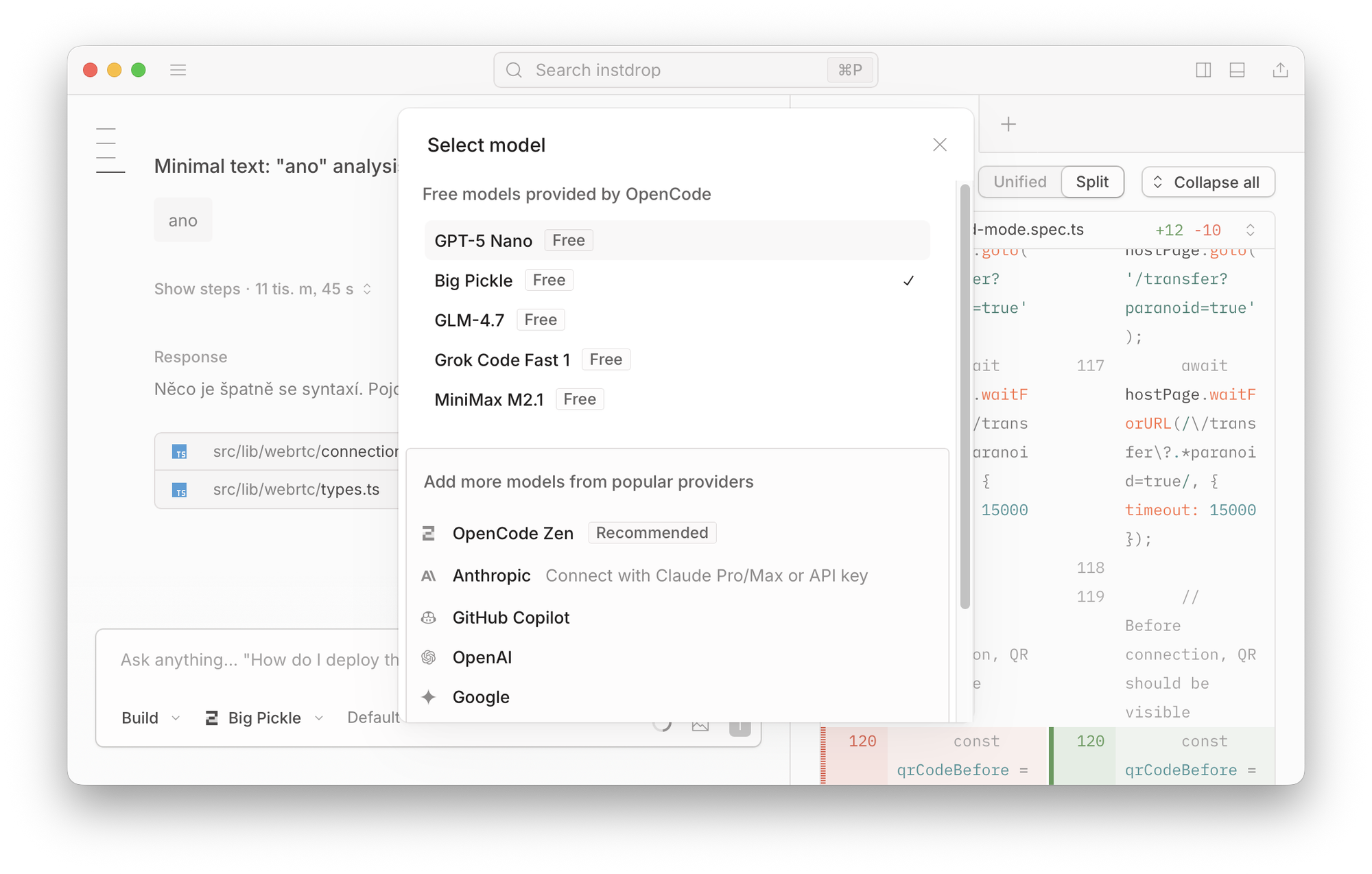
1. The Desktop App: Easiest & Most Visual
This is often the most straightforward way to begin.
- How: Head over to opencode.ai, find the download section, and click "Download Now." Choose the version for your operating system (e.g., macOS Silicon if you're on a newer Mac). Once downloaded, it's a simple double-click and follow the on-screen instructions, just like any other application.
- Why: The desktop app gives you a friendly graphical interface. This means clear visibility of multiple tasks, easy-to-understand alerts, and a more intuitive experience, especially if you're not a fan of the command line.
2. IDE Extensions: Integrate with Your Workspace
If you already have a favorite Integrated Development Environment (IDE) like Cursor or Windsurf, Open Code offers extensions to fit right in.
- How: Within your IDE, simply search for "Open Code" in the extensions marketplace and click "Install."
- Why: It seamlessly integrates Open Code's power directly into the coding environment you're already comfortable with, minimizing context switching between different applications.
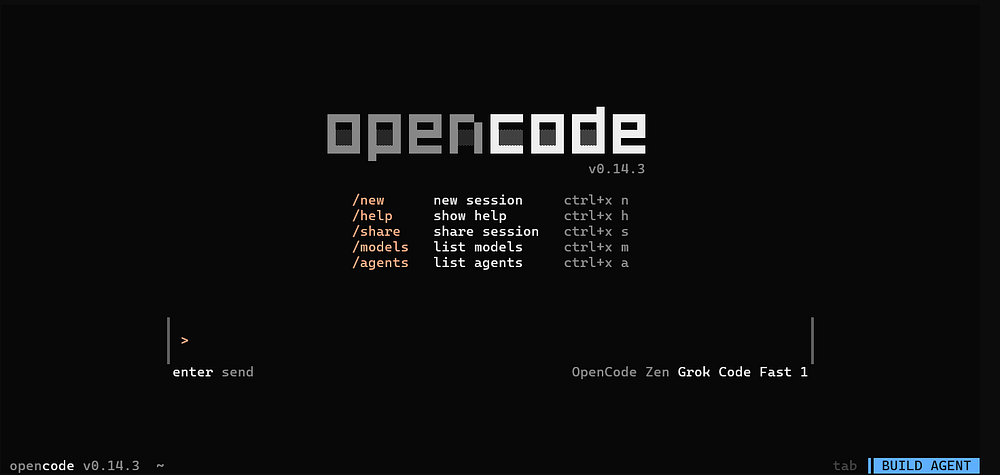
3. Command Line Interface (CLI): For Power Users
The CLI version of Open Code offers raw power and flexibility, though it might have a slightly steeper learning curve for newcomers.
- How: Open your terminal (like macOS Terminal, iTerm2, or a more advanced tool like Warp.dev or Ghosty). The easiest way to install it is using a
curlcommand. Open Code's website provides a simple one-liner that detects your operating system and chooses the best installation method (likebrewfor macOS orpnpmfor Linux). Just copy and paste the command and hit Enter. - Why: While the desktop app provides a user-friendly interface, the terminal version can often be faster for those familiar with command-line operations. It also tends to offer even more granular control and a wider array of model selections, which we'll discuss soon.
- Troubleshooting Tip: If you run into any installation hiccups with the CLI, a tool like Warp.dev can be a lifesaver. It's an AI-powered terminal that can help you debug command errors or suggest fixes for installation issues, saving you from digging through documentation.
4. The Web Version: Remote Access & Mobility
There's a hidden gem: you can run Open Code in your web browser.
- How: After you've installed Open Code via the terminal, you can often run a command like
open code web(check official documentation for the exact command). This will typically launch a local web server, and Open Code will open in your browser. - Why: This is incredibly useful if you want to access your Open Code instance from a different machine, perhaps a tablet or even your mobile phone, while the heavy lifting and your project's source code remain on your main computer. It's a great way to check on long-running tasks or make quick adjustments on the go. We'll explore mobile access further down.
Customizing Your AI Hub: Settings, Providers, and Strategies
Once Open Code is installed, a little setup goes a long way. This is where you connect your various AI models, customize your environment, and set up smart strategies to save time and money.
Your Personal Workspace: General Settings
Open Code lets you tailor its appearance and behavior. In the desktop app, just head to settings. You can:
- Appearance: Choose dark mode (a must for many developers!), adjust fonts, and pick from various themes like Dracula or Tokyo Night.
- Notifications: Decide if you want sound effects or on-screen alerts when tasks complete. I usually turn off pop-up notifications because things are always finishing, but it's great for checking progress on demand.
- Agent Controls: Fine-tune permissions and error handling for your AI agents.
Connecting Your AI Superpowers: Providers and API Keys
Open Code shines because it acts as a universal adapter for almost all major AI models. But first, you need to connect your accounts.
- How: In the desktop app, type
/to bring up commands, then selectmodel. You'll see an option to "Connect Provider." Choose your desired provider (Google, OpenAI, Anthropic, Perplexity, etc.) and enter your API key. For the terminal version, it's a similar/selectcommand, offering even more choices. - Why API Keys? API keys are like digital passwords that allow Open Code to securely communicate with the AI models you subscribe to. They grant Open Code permission to use your allocated credits or access their services.
- A Word of Caution on API Keys: Never, ever directly paste your API keys or sensitive passwords into an AI chat. When connecting providers, Open Code provides a secure way to input these.
- Pro Tip for Finding API Keys (Safely): Many AI platforms hide their API key generation in menus. If you're struggling to find it, you can use an AI-powered browser like Perplexity. Ask it: "Can you set up the API key for [Provider Name] so that it goes up to the stage where the key is ready for me to manually copy and paste? Please do not copy it for me." This way, the AI guides you to the right place without ever seeing or handling your actual key.
Beyond the Big Names: Exploring Diverse Models
While OpenAI, Google, and Anthropic are fantastic, Open Code allows you to connect to a much wider array of models, including emerging players and open-source options.
- Why look elsewhere? Many "smaller" or specialized models like GLM 4.7 (open source) or Miniax are incredibly capable and can often be significantly cheaper to use than the market leaders. It pays to explore!

My Model Strategy: Plan Smart, Build Efficiently
One of the biggest eye-openers with Open Code is that it forces you to think strategically about which AI model is best for a given task. This is a huge money and time saver.
- Planning with Gemini/Claude: For high-level ideation, outlining features, or architectural planning, models like Google Gemini 1.5 Pro are excellent. They excel at complex reasoning and generating detailed plans. (A quick note: Claude recently restricted third-party access, so I'd advise against using it directly with Open Code to avoid potential account issues). I set the "thinking effort" to high here, telling the AI to really chew on the problem, even if it uses a few more tokens upfront. A good plan prevents costly re-dos later.
- Building with OpenAI (GPT-4o/Code-X): Once the plan is solid, I switch to an OpenAI model for actual code generation.
- Simple tasks (bug fixes, UI tweaks): For minor adjustments like adding a button or fixing a small bug, I'll use a lower-cost, faster model like GPT-4o.
- Complex features (new modules, tricky logic): For more involved coding, I opt for something more robust like GPT-4 Code-X. It's designed specifically for coding and can handle more intricate tasks.
- Token Mindfulness: Open Code’s usage tracker is your best friend here. I constantly monitor my token usage. "Thinking effort" isn't just a philosophical concept; it's a direct cap on how many tokens the AI can consume for a single request. By adjusting this, and by choosing the right model for the job, I avoid wasting precious (and expensive) tokens.
A Smart Trick for Saving Tokens: Session Management
Here's a technique I use to keep my token costs down: instead of having one long, continuous chat with an AI for three different features, I break them into separate "sessions" within Open Code.
- Why it works: Each new session starts with a relatively fresh context window for the AI. This means the AI doesn't have to re-read and process an entire history of previous conversations for a new, unrelated task, saving tokens and keeping its focus sharp. It's like having fresh scratch paper for each new math problem instead of trying to cram everything onto one sheet.
Open Code in Action: A Real-World Workflow
Let's walk through how I actually use Open Code to build and refine a project, illustrating its parallel processing power.
Project Context: My Health Data Analyzer App
I work on a health data analyzer app. It syncs health data, provides analysis, and even uses AI to offer insights. Like any real-world app, it sometimes has bugs and always needs new features.
The Parallel Workflow: Fixing Bugs, Planning Features, and Improving UI
- Bug Fix (Visual Input):
- Problem: A graph in my app isn't displaying correctly; the "time frame" wording is out of place.
- Action: In Open Code, I start a new session. I take a screenshot of the bug and attach it directly to my prompt. "For the graphs, the 'time frame' word is out of place. Can you fix it?" I select GPT-4o, hit send, and let it start working.
- Open Code's Advantage: This task is now running in the background. I don't need to watch it.
- Gamification Ideas (Planning):
- Problem: I want to make the app "stickier" and encourage regular data syncing. Gamification could help.
- Action: While the bug fix is running, I open another new session. This time, I switch to "Plan" mode and choose Gemini 1.5 Pro (great for creative planning). My prompt: "For my health analyzer app, I want to add some gamification ideas to make it more sticky. Maybe adding streaks or something to reward users for syncing data regularly." I set "thinking effort" to high and send it off.
- Open Code's Advantage: Two AI models, two distinct tasks, running simultaneously.
- UI/UX Improvements (Another Planning Task):
- Problem: I always want to improve the overall user experience.
- Action: I open yet another new session. Still in "Plan" mode, I use Gemini again: "Can you suggest some ideas to improve the UI/UX of the product?" Send.
- Open Code's Advantage: Now three tasks are running! Open Code shows me the progress, elapsed time, and even the estimated code changes (lines added/deleted) for each session. When a task is done, I get a visual cue (a blue icon, or an optional notification).

Reviewing and Building
Once the AI agents have finished their work:
- Bug Fix: The first session completes. I check my app, and sure enough, the "time frame" wording is gone, and the graph looks clean. Success!
- Gamification Plan: Gemini presents some excellent ideas, including badges and milestones for streak achievements. I like it. So, in that session, I switch from "Plan" mode to "Build" mode, select GPT-4 Code-X, confirm the plan, and let it start generating the code to implement streaks.
- Multi-Project Work: What if I need to work on a completely different project? Open Code lets me open another project folder and run multiple sessions within that project too. I can literally be developing on multiple products at the same time, each with its own parallel AI agents.
This simultaneous execution is the true power. I'm no longer blocked. I'm reviewing results, guiding agents, and making high-level decisions, rather than waiting.
Going Deeper: Advanced Features and Customization
Open Code isn't just about parallel tasks; it's packed with features to make your AI coding smarter and more efficient.
Optimizing Your Project Context: The init Command and agents.mmd
When you start a new project, this is the first command you should run.
- What it does: Type
/init. Open Code will analyze your entire project's file and folder structure. It then creates a specialagents.mmdfile. - Why it's important: This
agents.mmdfile acts as a contextual map for the AI. It outlines your project's architecture, naming conventions, coding style guidelines, error handling patterns, and more. This means that in future interactions, the AI already "knows" your project's nuances. - Token Saving: Because the AI has this pre-digested context, it requires fewer tokens to understand your requests and generate relevant code. It's like giving it a well-organized instruction manual upfront instead of making it guess.
Maintaining Code Quality: review and refactor Commands
These commands help ensure your codebase stays clean, secure, and efficient.
/review: This command prompts Open Code to scan your code for potential security vulnerabilities, bugs, styling inconsistencies, and general code health issues. It's like having a senior developer instantly review your entire project. If it finds issues, you can then ask it to fix them./refactor: Over time, as features are added and removed, code can become messy or redundant. Therefactorcommand helps clean up your codebase, remove unused code, and improve overall efficiency and readability.
Expanding Capabilities with Multi-Capability Providers (MCPs)
MCPs are like adding extra "senses" or "tools" to your AI agents. They allow Open Code to interact with external services and perform actions beyond just generating text.
- Example: Playwright: One MCP mentioned is Playwright, which can open a web browser and simulate user actions. This means Open Code could potentially test your UI by clicking around, finding elements, and reporting back issues.
- Example: Context 7 (Token Saving Genius): This is a powerful MCP that helps save tokens by allowing the AI to read API documentation and libraries at a much lower cost. Instead of feeding the entire documentation into the AI's context window (which is very expensive), Context 7 provides a more efficient way for the AI to retrieve specific information when needed.
- Adding an MCP: You typically need to sign up for the MCP's service, get an API key, and then add this to Open Code's configuration file (often
open code.json). Again, tools like Warp.dev can help you quickly locate and edit these configuration files without manually browsing directories. - Automating MCP Usage with Rules: Even with MCPs added, you might forget to explicitly tell Open Code to use them. This is where rules come in. You can add a rule to your
agents.mmdfile (remember that project context file?) like "Always use Context 7 when I need library documentation." This automates the process, ensuring Open Code intelligently uses the right tool at the right time, saving you tokens and effort.
Terminal App Power: More Control, More Options
While the desktop app is great for visibility, the terminal app often unlocks more granular control and a broader selection of models.
- Navigation: Use
cdto change directories to your project folder, then simply typeopen codeto launch. - Key Controls:
Ctrl+T: Adjust the "thinking effort" or token cap on the fly.Tab: Switch between "Plan" and "Build" agents.Ctrl+P: Cycle through an even wider selection of models than the desktop app. This is where you can truly leverage specialized or less common models.
- Parallelism in CLI: Just like the desktop app, you can run multiple tasks simultaneously. In the terminal, you can achieve this by using "split panes" (if your terminal supports it, like Warp.dev or iTerm2). Open multiple panes, launch
open codein each, and you're running multiple sessions side-by-side. You can even open new tabs for entirely different projects.
Streamlining Repetitive Tasks: Skills and Commands
Open Code lets you define your own shortcuts and automated routines.
- Skills (Reusable Instructions): If you find yourself giving the AI the same set of instructions repeatedly (e.g., "Refactor this code using best practices for Xcode projects"), you can turn that into a "skill."
- How: You can ask Open Code to help you create a skill and add it to a
skills.mdfile (similar toagents.mmd). Once defined, you can simply call that skill by name, and the AI will execute the complex instruction set. This ensures consistency and saves a ton of typing.
- How: You can ask Open Code to help you create a skill and add it to a
- Commands (Custom Shortcuts): The
slashcommand brings up a menu of built-in commands. You can extend this by adding your own custom commands.- How: For instance, you could define a command called
/git-pushthat executes a sequence likegit add .,git commit -m "AI-assisted commit", andgit push. This automates common developer actions right from within Open Code.
- How: For instance, you could define a command called
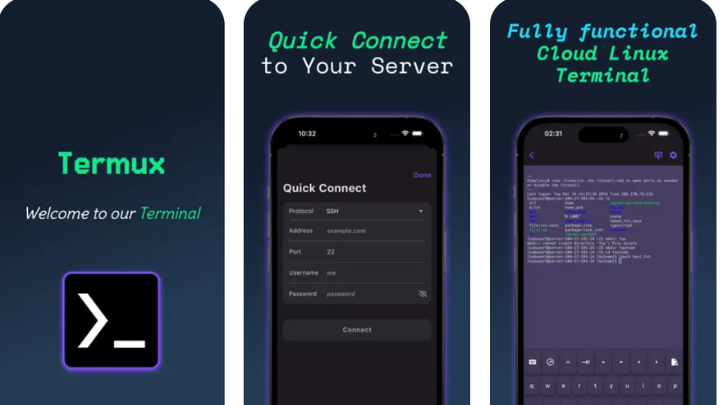
Coding on the Go: Open Code on Your iPhone
Imagine being able to monitor your AI coding tasks or even make quick changes from your phone while you're away from your desk. Open Code makes this possible.
- The Concept: You run Open Code on your main computer, but access its interface and functionality from your mobile device.
- How (Local Network):
- Server Setup (Mac): Go to your Mac's System Settings -> Sharing and enable "Remote Login." Add your user account. This enables your Mac to accept secure shell (SSH) connections.
- Termius App (iPhone): Download a terminal emulator app like Termius on your iPhone (it has a good free tier).
- Connect: Open Termius, use its "Discover Local Devices" feature to find your Mac on the same Wi-Fi network. Connect to it using your Mac's username and password.
- Run: Once connected, you'll see a terminal on your phone. Just type
open code, and voilà! Open Code is running on your Mac, but displayed and controlled via your iPhone.
- Limitations & Future: This method primarily works when you're on the same local network. Connecting remotely (e.g., from a coffee shop) requires more advanced network setup, often involving VPNs or tunneling services like Cloudflare. That's a topic for another deep dive!
Key Takeaways: Your Path to AI Coding Mastery
Open Code isn't just another tool; it's a paradigm shift in how we interact with AI for software development. It tackles the fundamental bottleneck of human attention and sequential workflows, empowering you to build faster and smarter.
Here are the big takeaways:
- Parallel Power: Say goodbye to one-task-at-a-time. Run multiple AI agents on multiple tasks across multiple projects simultaneously.
- Strategic Model Use: Open Code encourages you to pick the right AI model for the right job (e.g., Gemini for planning, OpenAI for building), saving you time and money.
- Token Optimization: Intelligent session management, MCPs like Context 7, and the
initcommand all work to reduce your token consumption and therefore your costs. - Enhanced Oversight: Track usage, get alerts, and see real-time code changes, so you're always in control without constant monitoring.
- Deep Customization: Tailor your workflow with MCPs, skills, and custom commands to fit your unique development style.
- Flexible Access: Whether you prefer a desktop app, IDE integration, the raw power of the terminal, or even mobile access, Open Code adapts to you.
We're at a point where AI isn't just a helper; it can be an entire parallel workforce. Open Code is the command center that makes that workforce manageable, efficient, and incredibly productive. Stop waiting, start orchestrating. Your future self (and your project deadlines) will thank you.
📎 Related reading: Opencode: An Extensible Open-Source AI Agent Framework for Software Development · Streamlining Your Terminal Workflow with the Open Code AI Agent · opencode vs Claude Code: Which AI Coding Agent Should You Use in 2026?